
Users
Users
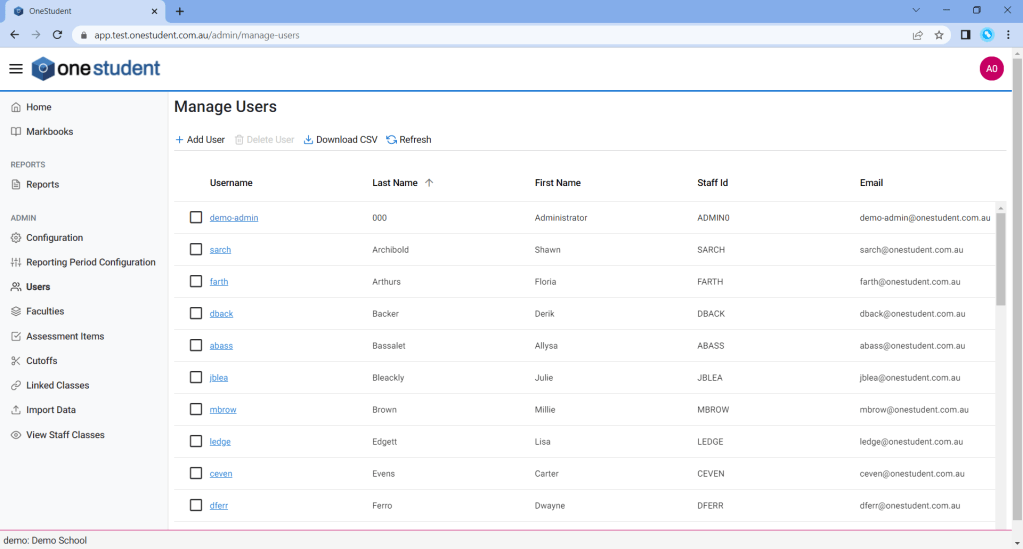
The User – Manage User page allows the Administrator to manage the list of users that have access to OneStudent. This includes names changes, email addresses, Faculty or Role for individual users and deleting a user that is no longer part of the school faculty.
The options available are:
- Add User – which allows an Administrator to add a new user.
- Delete User – which allows an Administrator to delete a user that.
- Download CSV – which allows an Administrator to download a CSV file of the current users within OneStudent.
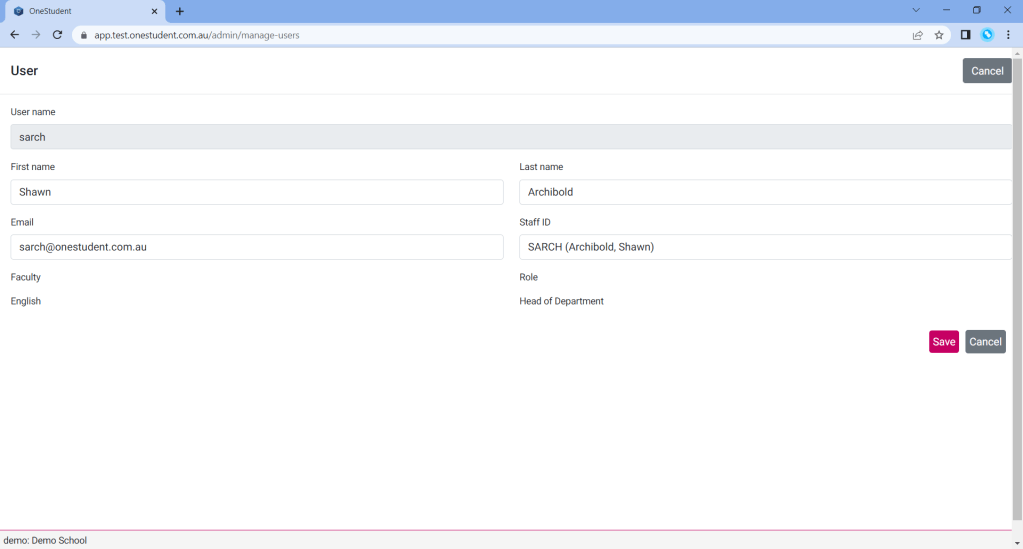
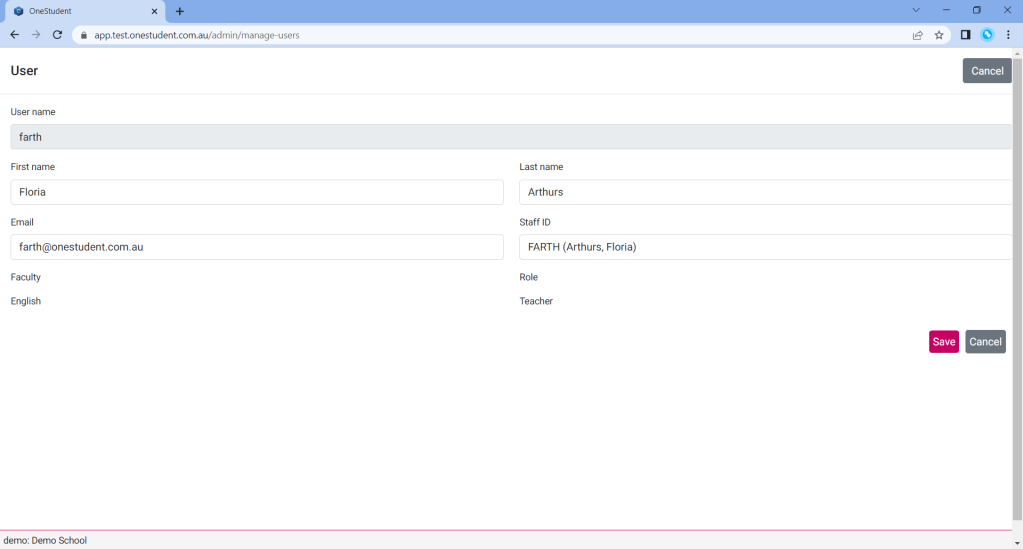
- Selecting on the individual user to display their user profile. User type roles can be assigned on the individual user profile.
Example of OneStudent – Users – Manage Users page:
Example of OneStudent – Users – Manage Users page with a User selected (User Profile) showing a Head of Department:
Example of OneStudent – Users – Manage Users page with a User selected (User Profile) showing a Teacher:
User – Add User
To Add User:
- From the User page.
- Select Add User.
- A new User Profile will be displayed.
- Enter relevant data as required.
- Once completed select Save.
- OneStudent will display a success message to indicate the changes have been recorded.
User – Modifications
To Modify User:
- From the User page.
- Select the relevant User.
- The User Profile will be displayed.
- Update as required.
- Once completed select Save.
- OneStudent will display a success message to indicate the changes have been recorded.
User – Delete User
To Delete User:
- From the User page.
- Select the relevant User to be deleted.
- Select Delete User.
- Message boxes is displayed, “Are you sure you want to delete user: ?
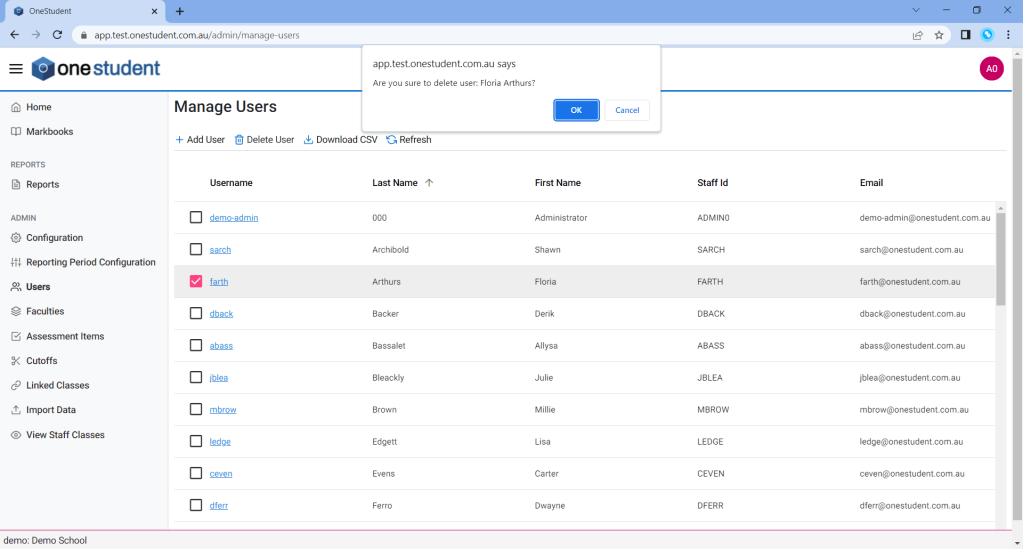
- Select Ok.
- OneStudent will display a success message to indicate the deletion have been recorded.
 OneStudent