
Students
Students – Manage Students
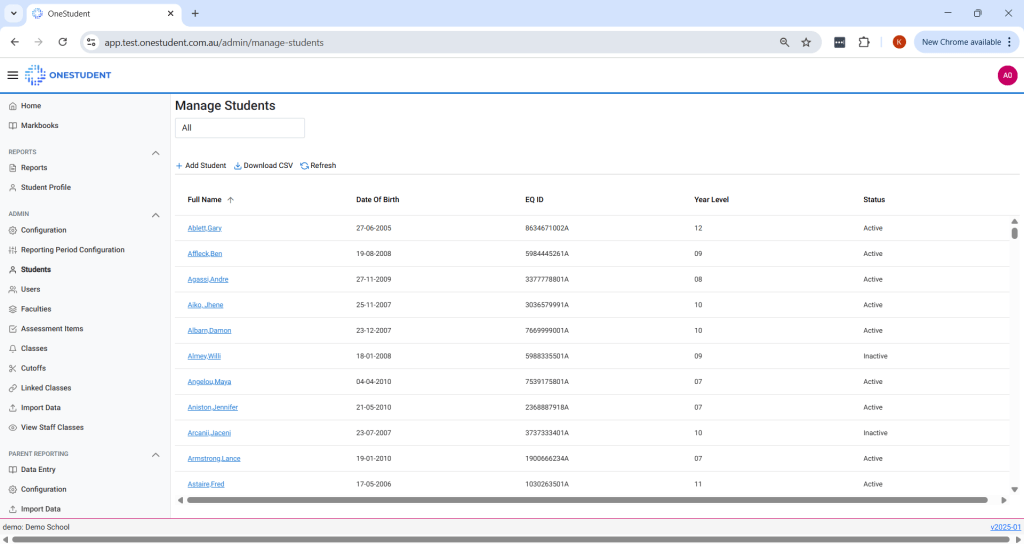
The Manage Students page in OneStudent enables Administrators to oversee the list of students in the system. This includes adding new students and updating existing student profiles. For example, when a student leaves the school, they can be marked as inactive.
The available options include:
- Add Student – Allows the Administrator to add a new student to the system.
- Download CSV – Allows the Administrator to download a CSV file of all current students in OneStudent.
- Select Individual Student – Clicking on a student’s name opens their profile, where role types can be assigned.
Example of the OneStudent – Students – Manage Students page:
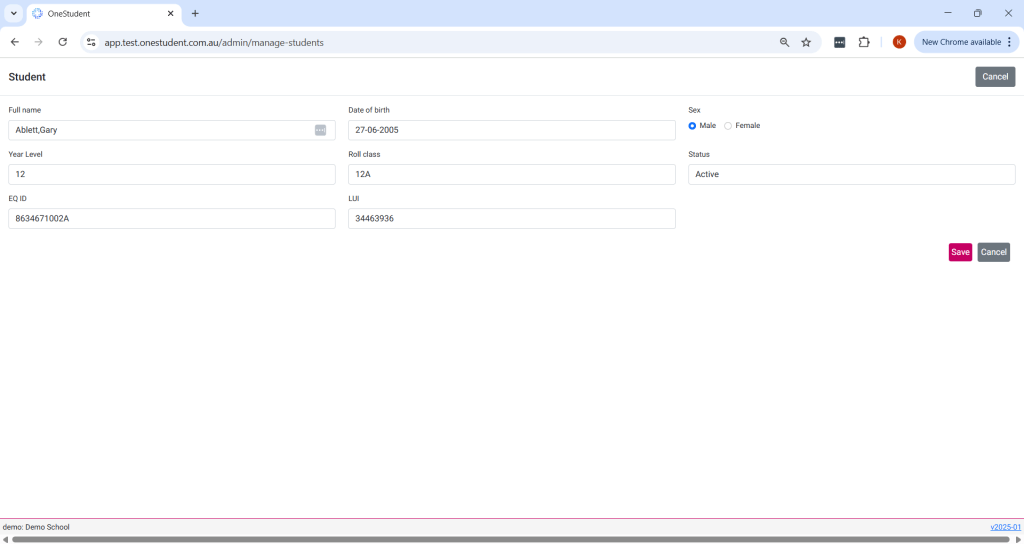
Example of OneStudent – Student – Manage Students page with a student selected:
Student – Add Student
To Add a Student:
- From the Students page, select Add Student.
- A new Student Profile screen will appear.
- Enter the required student information.
- Once complete, click Save.
- OneStudent will display a success message confirming the changes have been saved.
Student – Modify Student
To Modify a Student:
- From the Students page, select the relevant student.
- The Student Profile will be displayed.
- Make the necessary updates.
- Once complete, click Save.
- OneStudent will display a success message confirming the changes have been saved.
Student – Make Student Inactive
To Mark a Student as Inactive:
When a student leaves the school, they should be marked as inactive to reflect their departure.
- From the Students page, select the relevant student.
- The Student Profile will be displayed.
- Update the Status field to Inactive.
- Once complete, click Save.
- OneStudent will display a success message confirming the changes have been saved.
Note: Once a student is marked as inactive, they are automatically removed from all associated classes.
 OneStudent