
Cutoffs
Cutoffs – Functionality and Options
Cutoffs are used in the Cumulative report, they can also be used to override the grade given based on a percentage value.
Each assessment item is assigned a cutoff, and by default the hardcoded percentage values within OneStudent are applied.
Example of OneStudent – Manage Cutoffs page:
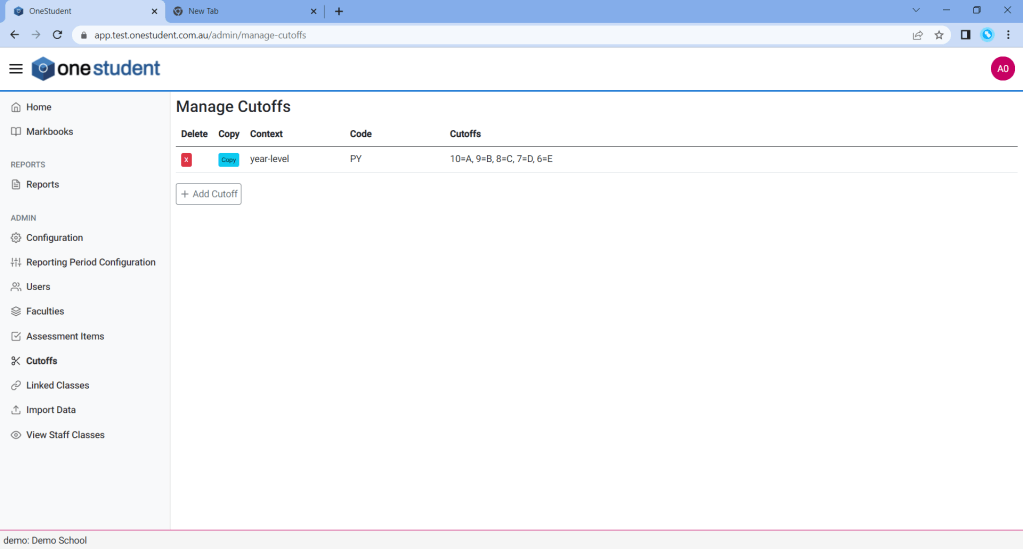
The following are the default hardcoded percentage values Which are the following:
- if (percentage >= 93) return “A+”;
- if (percentage >= 87) return “A”;
- if (percentage >= 80) return “A-“;
- if (percentage >= 73) return “B+”;
- if (percentage >= 67) return “B”;
- if (percentage >= 60) return “B-“;
- if (percentage >= 53) return “C+”;
- if (percentage >= 50) return “C”;
- if (percentage >= 47) return “C-“;
- if (percentage >= 40) return “D+”;
- if (percentage >= 33) return “D”;
- if (percentage >= 27) return “D-“;
- if (percentage >= 20) return “E+”;
- if (percentage >= 13) return “E”;
- return “E-“;
In the cases that the default percentage values listed above are not relevant, then a Cutoffs can be assigned to an individual year-level or class-code. Any individual year-level or class-code Cutoffs set will override the default percentage values.
Note: that, if no individual year-level or class-code Cutoff is set via the Cutoffs page then the default hardcoded percentage values will be applied.
Cutoffs for Year Level
To set a Cutoff for a year-level, from the Cutoffs – Manage Cutoffs page:
- Select + Add Cutoff.
- In the Select context, select year-level.
- The Select year level field is displayed. From the drop-down list, select the relevant year-level.
- From the Select cutoff type drop-down list, select either:
- A to E, or
- A+ to E-
- Boxes will be displayed, enter the relevant cutoffs’.
- Once completed select the green tick on the right-hand side to save the new cutoff.
Note: Cutoffs are set on the following rules, if (percentage >= X) return “Y“
For example,

Means the following:
- if (percentage >= 85) return “A”;
- if (percentage >= 75) return “B”;
- if (percentage >= 65) return “C”;
- if (percentage >= 55) return “D”;
- if (percentage >= 45) return “E”;
Cutoffs for Class Code
To set a Cutoff for a class-code, from the Cutoffs – Manage Cutoffs page:
- Select + Add Cutoff.
- In the Select context, select class-code.
- The Select class code field is displayed. From the drop-down list, select the relevant class-code.
- From the Select cutoff type drop-down list, select either:
- A to E, or
- A+ to E-
- Boxes will be displayed, enter the relevant cutoffs’.
- Once completed select the green tick on the right-hand side to save the new cutoff.
Note: Cutoffs are set on the following rules, if (percentage >= X) return “Y“
For example,

Means the following:
- if (percentage >= 85) return “A”;
- if (percentage >= 75) return “B”;
- if (percentage >= 65) return “C”;
- if (percentage >= 55) return “D”;
- if (percentage >= 45) return “E”;
Note: Cutoffs can also be copied if required.
 OneStudent