
Login
Login
Each school is provided with their own unique URL.
The first person to be provided access will be the school assigned OneStudent Administrator.
This person will be responsible for establishing the OneStudent configuration framework that will provide access to all required Faculty.
To Login into OneStudent:
- Go to the URL https://app.onestudent.com.au.
- On the left-hand side Click the ‘Sign In’ button.
- The OneStudent Login page is displayed.
- Enter your Email and Password
- You will then be directed to OneStudent’s Home page.
First time login into OneStudent
- From your internet / web browser.
- Go to the URL https://app.onestudent.com.au
- Click on ‘Sign In’.
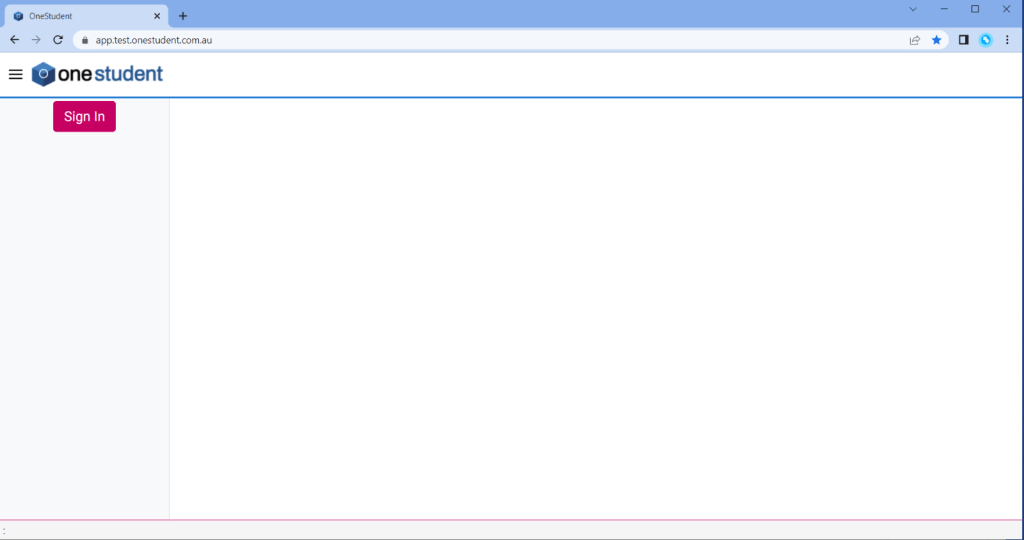
The ‘Sign In’ window is displayed:
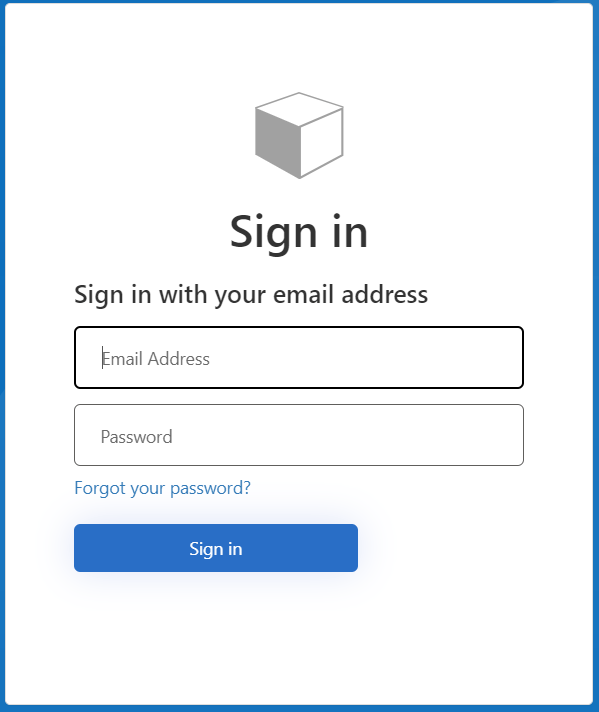
- Select ‘Forgot your password’.

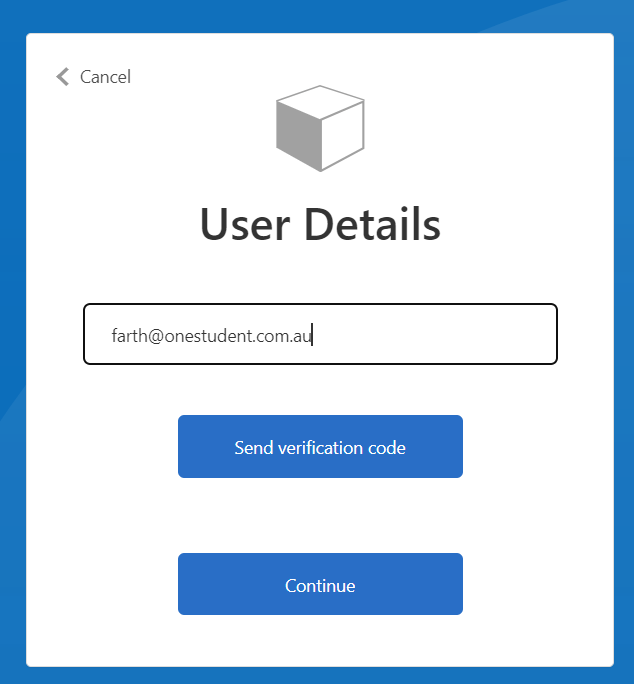
The ‘User Details’ window is displayed:

- Type in your EQ email address and then click ‘Send verification code’.
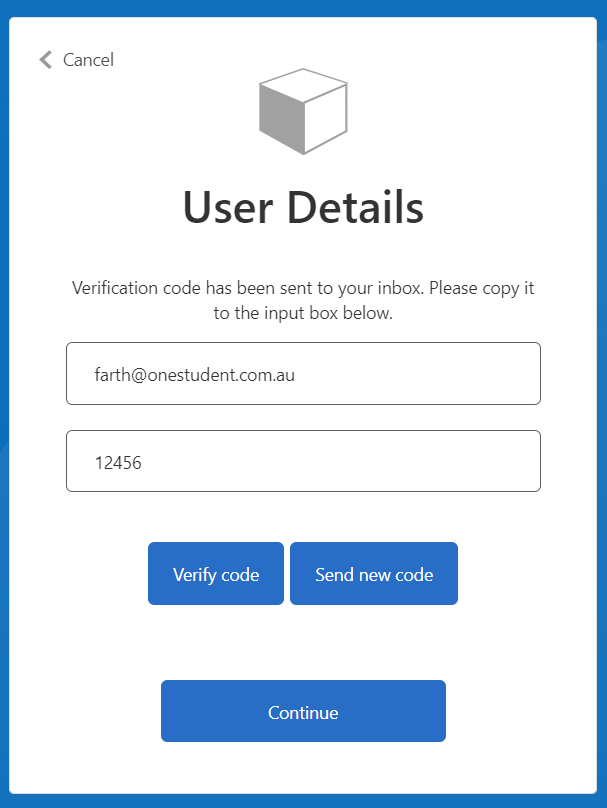
The ‘User Details’ window with ‘Verification Code’ field is displayed:
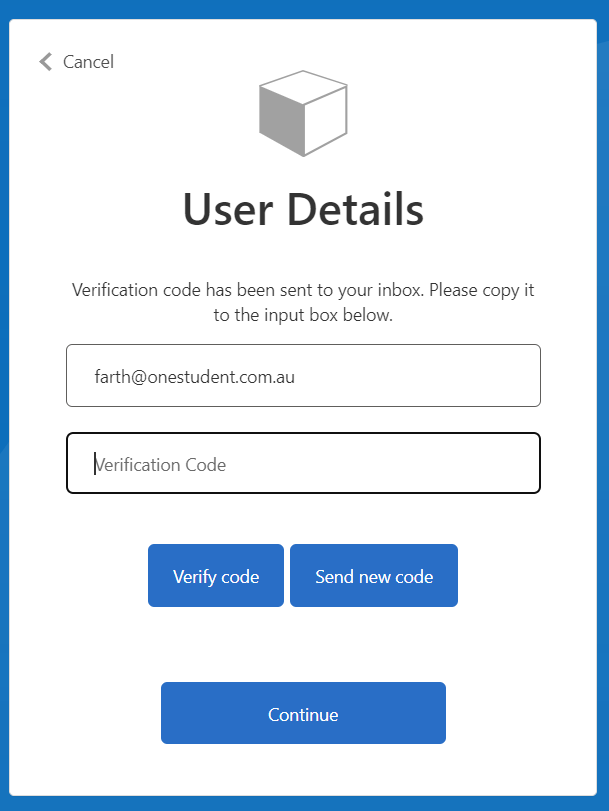
The ‘Verification Code’ will be sent to email address you entered in the ‘User Details’ ‘Email Address’ field.
- Navigate to the relevant email account and Copy or Note the ‘Verification Code’.
- Paste or Type in the ‘Verification Code’ from the email.

- Click ‘Verify code’ and then click ‘Continue’.
- You will be prompted to enter a password.
- You will be directed to Onestudent’s main screen.
- Log out of OneStudent.
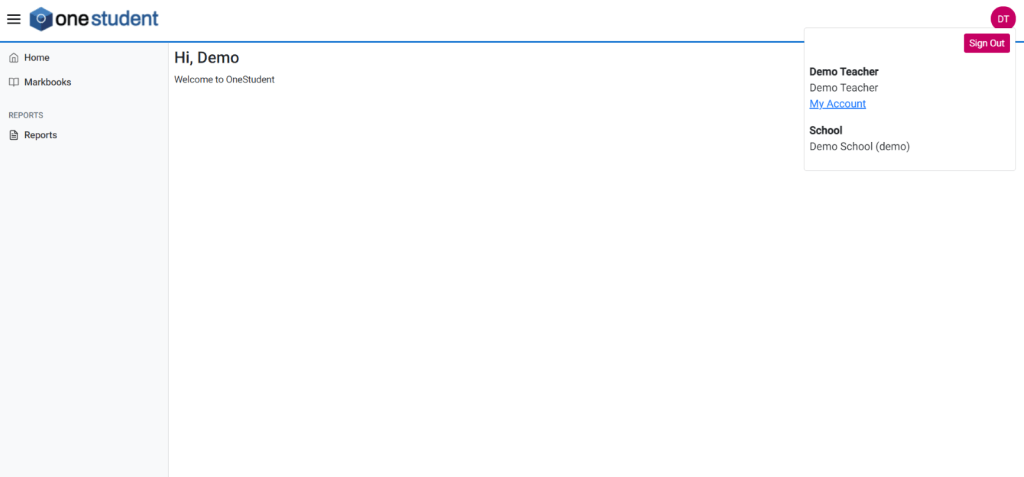
- Log back in using your EQ email and new password.
Note: Add OneStudent to your internet / web browser favourites / bookmarks for easy access to OneStudent URL in the future.
Forgot My Login
- Select ‘Forgot your password’.
The ‘User Details’ window is displayed:
2. Type in your EQ email address and then click ‘Send verification code’.
The ‘User Details’ window with ‘Verification Code’ field is displayed:
The ‘Verification Code’ will be sent to email address you entered in the ‘User Details’ ‘Email Address’ field.
3. Navigate to the relevant email account and Copy or Note the ‘Verification Code’.
4. Paste or Type in the ‘Verification Code’ from the email.
5. Click ‘Verify code’ and then click ‘Continue’.
6. You will be prompted to enter a new password, select your new password and then click ‘Continue’.
 OneStudent