
Linked Classes
Linked Classes – Functionality and Options
Linked classes are used in the QCAA upload report. If classes are configured via the Linked Classes page, then QCAA upload report will includes students and results from the selected class and any linked class.
For example,
Linking Music extension for year 11 MEX11 and Music from year 12 MUS12 = MUS12 -> MEX11.
If you completed a QCAA report for MUS12, you would also get results for MEX11.
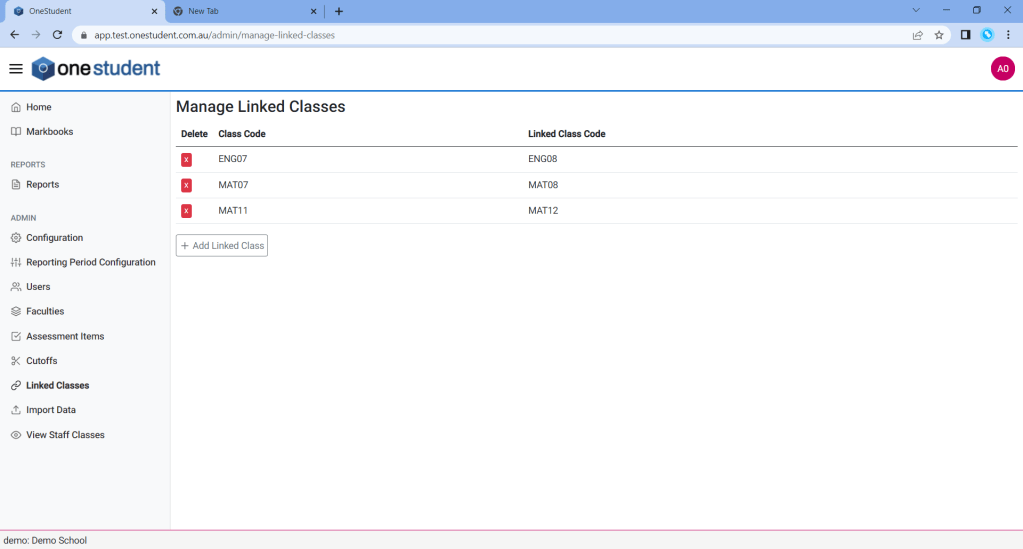
Example of OneStudent – Manage Linked Classes page:
Setting Linked Classes
To set a Linked Class, from the Linked Classes – Manage Linked Classes:
- Select + Add Linked Class.
- In the first Select class code, from the drop-down list, select the relevant class-code.
- In the second Select class code, from the drop-down list, select the relevant linked class-code.
- Once completed select the green tick on the right-hand side to save the new cutoff.
 OneStudent