
Install Notepad ++
To Properly edit Data for Uploading to the “Import Data” section on OneStudent, you will first have to install NotePad++. This will run through both how to install NotePad++ and how to Assign the .CSV files to NotePad.
Installation
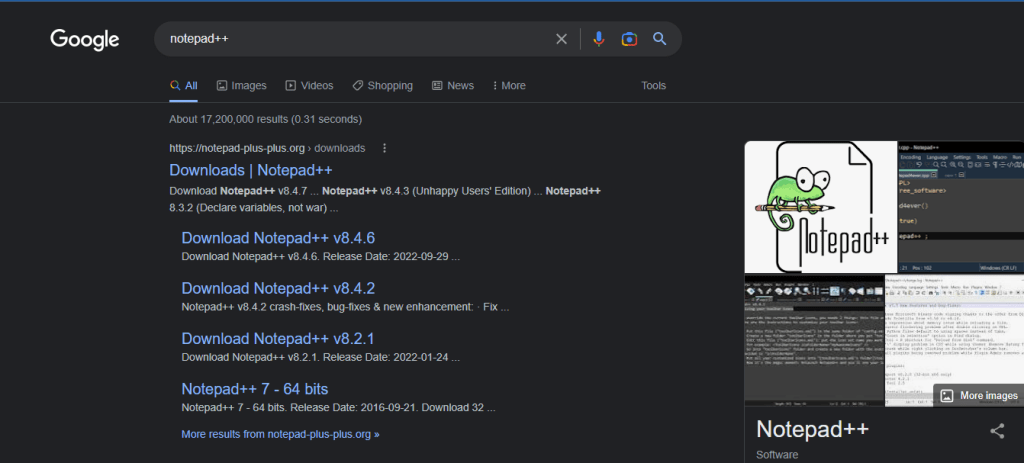
Search Notepad++ and Select Downloads
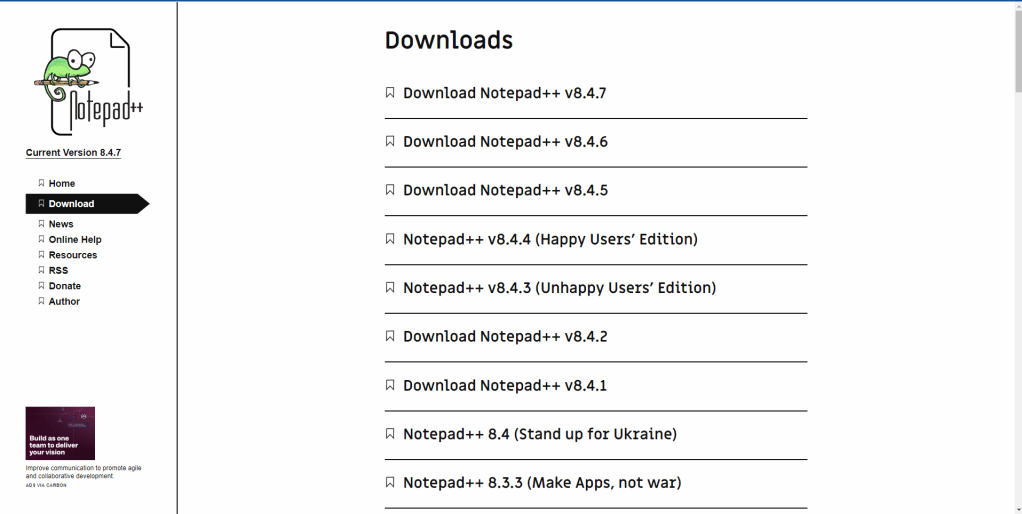
Select the most recent edition, this case it is Notepad++ v8.4.7
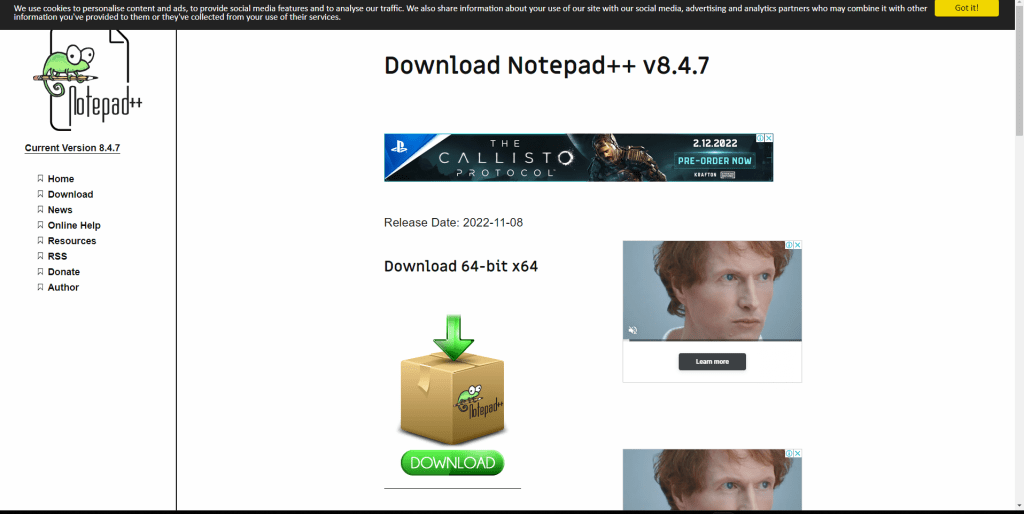
Click the green download button
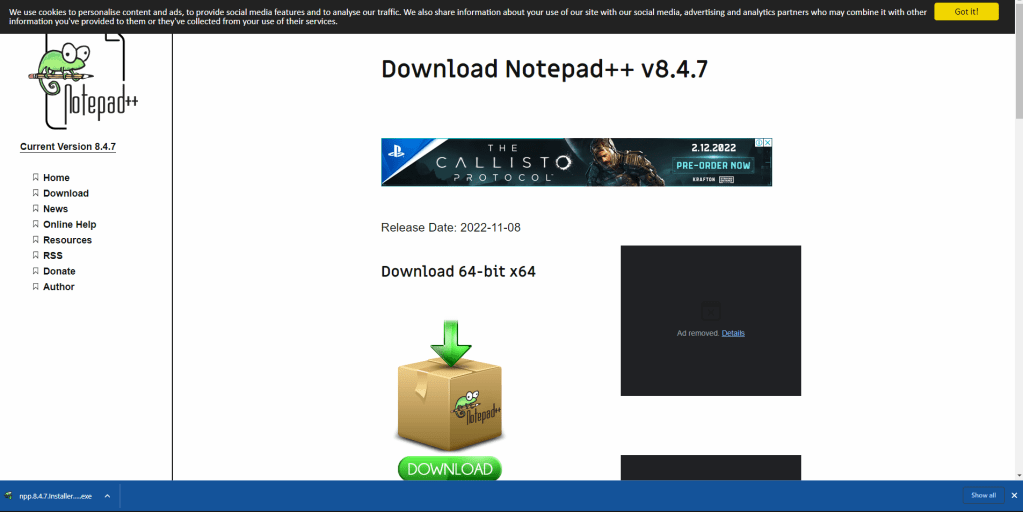
Once downloaded click the installer
Installation will begin, agree to terms and conditions and begin following the installation prompts. In most cases the generic file save location will work best
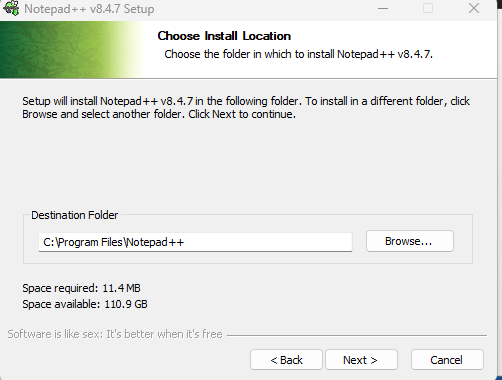
Leave everything default

If required create a Short cut to desktop and then select Install and then finish
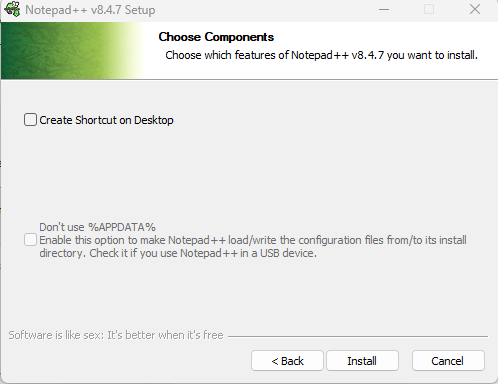
Assigning CSV. Files to Notepad++
Open Settings press the Windows + I keys
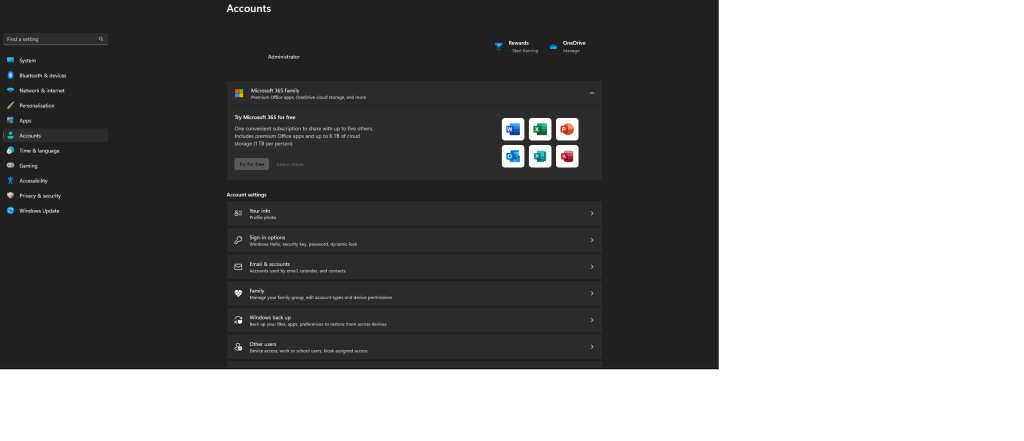
Select Apps and then Default Apps
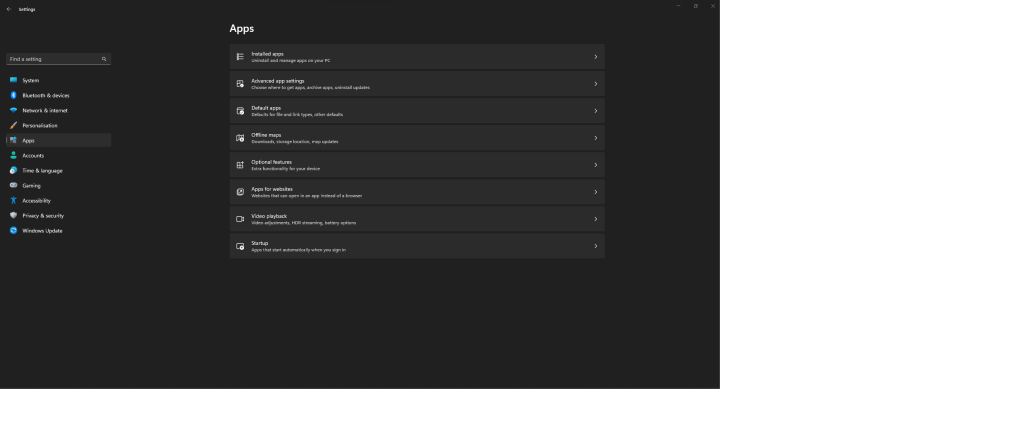
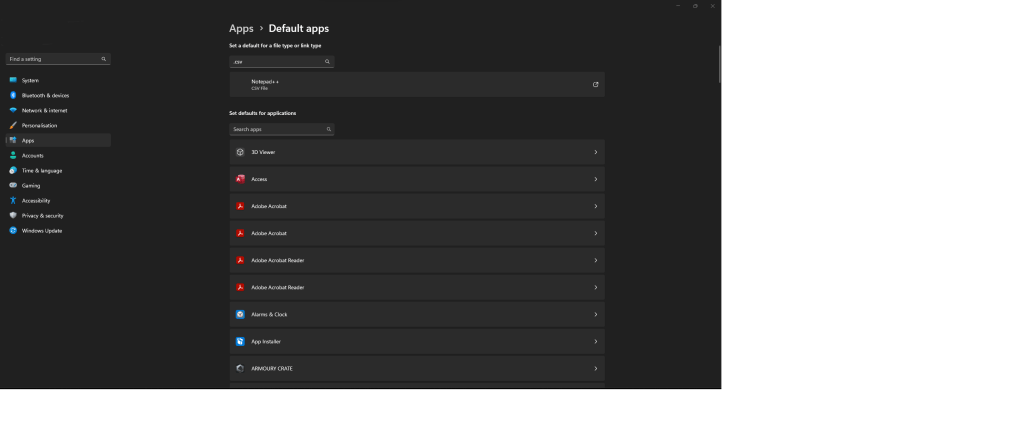
Within Default apps Search “.CSV” this will display that excel is the default
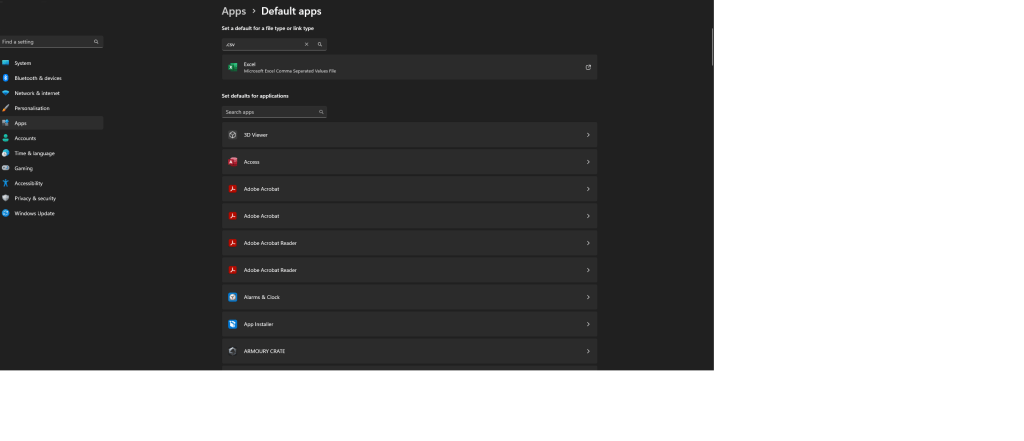
Click excel and then when prompted with the option change the default program to use NotePad ++
 OneStudent