
Classes
Classes – Manage Classes
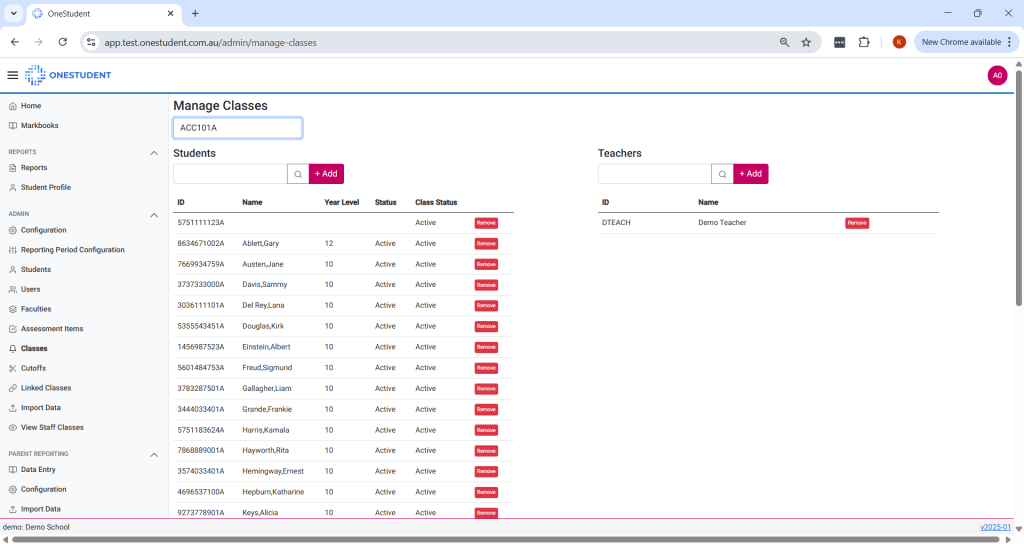
The Manage Classes page in OneStudent allows Administrators to manage class enrolments and teaching staff. You can add or remove students and teachers, with all changes immediately reflected in the class record and Markbook.
Example of the OneStudent – Classes – Manage Classes page:
Accessing a Class
- Select Classes, the Manage Classes screen will be displayed.
- Use the dropdown list to select the relevant class.
- The selected class profile will load, showing:
- A list of current students on the left
- A list of assigned teachers on the right
Add a Student to a Class
- On the left side (Students section), click the magnifying glass icon to open the student search.
- Either browse the list or type the Student ID to locate the student.
- Once found, select the student and click Add.
- The student will now appear in the class’s student list.
✅ Only active students are shown in search results.
Remove a Student from a Class
- In the student list, click the red Remove button next to the student you wish to remove.
- The student will be immediately removed from the class.
🔹 Use this option if the student is moving to a different class but still enrolled at the school.
🔺 Note: If the student has left the school, go to the Students section, select the student, and set their status to Inactive. This will automatically remove them from all associated classes.
📝 The student’s grades will remain recorded and can still be accessed in the Markbook by enabling the Show Left Students filter.
Add a Teacher to a Class
- On the right side (Teachers section), click the magnifying glass icon to open the staff search.
- Either browse or enter the Staff ID to find the appropriate teacher.
- Select the staff member and click Add.
- The teacher will now appear in the class’s teacher list.
✅ Only users added through the Users section as Staff will appear here.
Remove a Teacher from a Class
- In the teacher list, click the red Remove button next to the teacher you wish to remove.
- The teacher will be removed from the class.
 OneStudent