
Assessment Items
Assessment Items – Functionality and Options
The Assessment Items page allows the Administrator or Head of Departments to manage the list of assessment items for each subject. As you have seen the assessment items are included on the markbook page, and then a mark is given to each assessment item criteria.
The Assessment Items can only be configured once Configuration, and Import Data are completed.
The options available on the Manage Assessment Items are:
- Year,
- which is a drop-down list, in the demo environment we have both 2022 and 2023, this show an example of where a school has used the OneStudent solution for more then one year.
- Add Assessment Item,
- Delete Assessment Item,
- Lock or Unlock,
- Copy,
- Copy to next year,
- Download CSV,
- Selecting on the individual assessment items to display the assessment item profile.
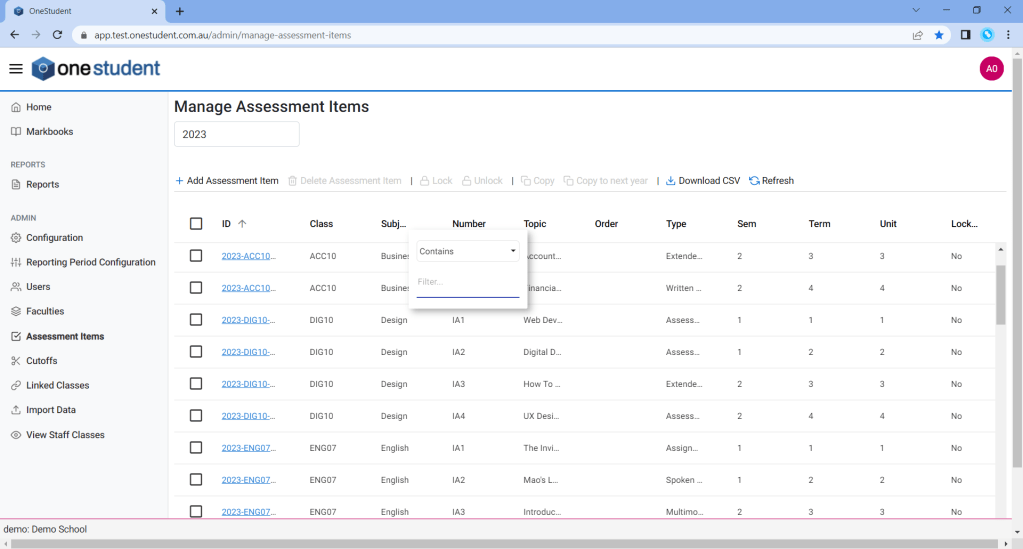
You can navigate on the Manage Assessment by either sorting or searching within the columns.
Example of OneStudent – Assessment Items – Manage Assessment Items page with column sorted and search box:
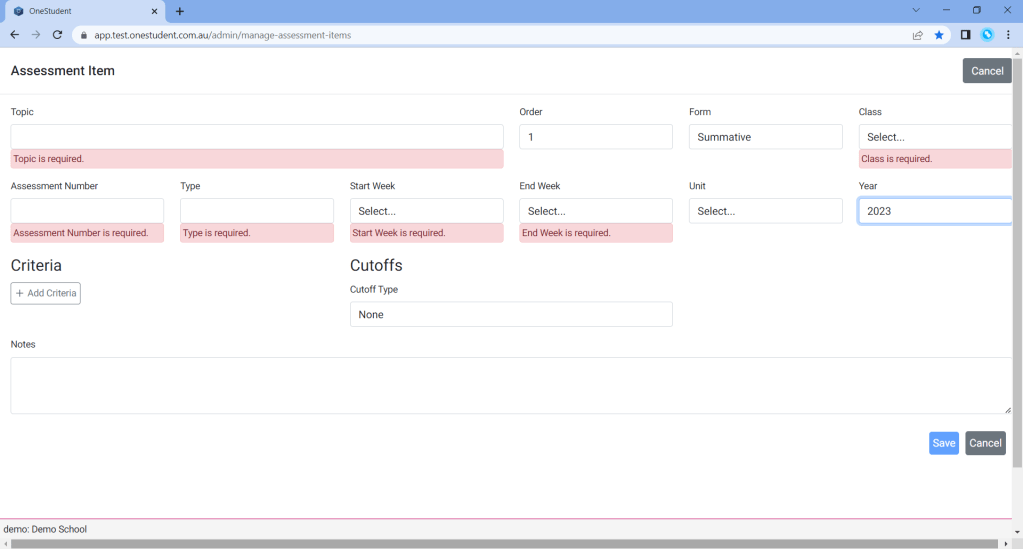
The Add Assessment Item page, displays all the fields required to be completed to create an assessment item. Some fields are mandatory field and OneStudent will not allow you to save until those fields are completed.
Example of OneStudent – Assessment Items – Manage Assessment Items page – Add Assessment Items (Assessment Items Profile)

Some of the Mandatory fields include:
- Topic,
- Assessment number,
- Type Class,
- Start Week and End week.
Example of OneStudent – Assessment Items – Manage Assessment Items page – Add Assessment Items (Assessment Items Profile) message when saving that indicating mandatory fields are not completed:
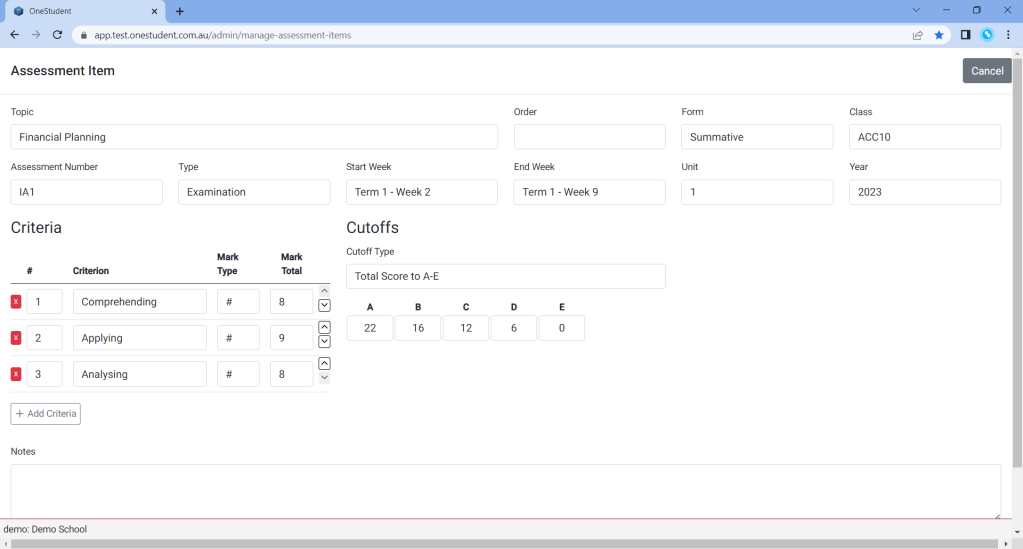
The options available on the Assessment Items Profile are:
- Topic – is free texted.
- Order – is a drop down list – only one option can be selected.
- Form – is a drop down list – only one option can be selected.
- Class – is a drop-down list – the class is populated on the Import Data page via the Student Classes option.
- Assessment Number – is free texted.
- Type – is free texted.
- Start Week – is a drop-down list.
- End Week – is a drop-down list.
- Unit – is a drop-down list, in this example the Unit is 4.
- Year – is a drop-down list, in this example the Year is 2023.
- Criteria, which can be added using the Add Criteria button.
- Criteria’s are where the individual specific assessment requirements are defined. The following options are available for each criteria item.
- No. # – this is a free text field, which defines the number of criteria and the order required to achieve the overall mark.
- Criterion – this is a free text field, which provides a brief description or title of the specific criteria.
- Mark Type – this is a drop-down list, the options are No.# or A-E.
- Mark total – this is a free text field, which defines the overall mark score that can be achieved for those specific criteria. In this example each Mark total is different as they are weighted differently.
- Cut-offs, are used to identify and calculate a grade. This is not a mandatory field, but if it is left blank then the Calculated Grade which is a grade suggestion will not be available on the markbook.
- The Cut-off type – is a drop-down option, which includes
- None
- Total Score to A-E
- Percentage A-E
- 10 Point A-E
- 15 Point A-E
- 20 Point A-E
- 25 Point A-E
- 15 Point – (per criteria average)
Example of OneStudent – Assessment Items – Manage Assessment Items page – Add Assessment Items (Assessment Items Profile) with data:
Assessment Items – Add Assessment Item – New
To Add Assessment Items:
- From the Assessment Items page.
- Selected Add Assessment Item.
- The Assessment Item Profile will be displayed.
- Update as required, ensuring all Mandatory fields are completed.
- Once completed selected Save.
- New Assessment Item will be available on the Assessment Items – Manage Assessment Items page.
Assessment Items – Copy or Copy to next year an Assessment Items – New
To Copy or Copy to next year an Assessment Items:
- From the Assessment Items page.
- Tag the Assessment Items to be copied.
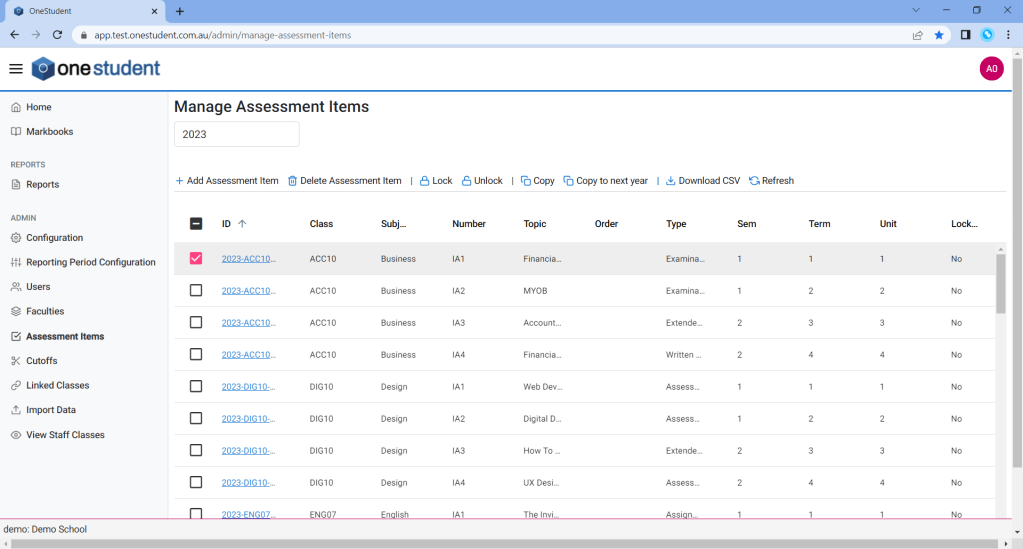
- Select the Copy or Copy to next year option.
- Message boxes is displayed, “Are you sure you want to copy the selected assessment item?”
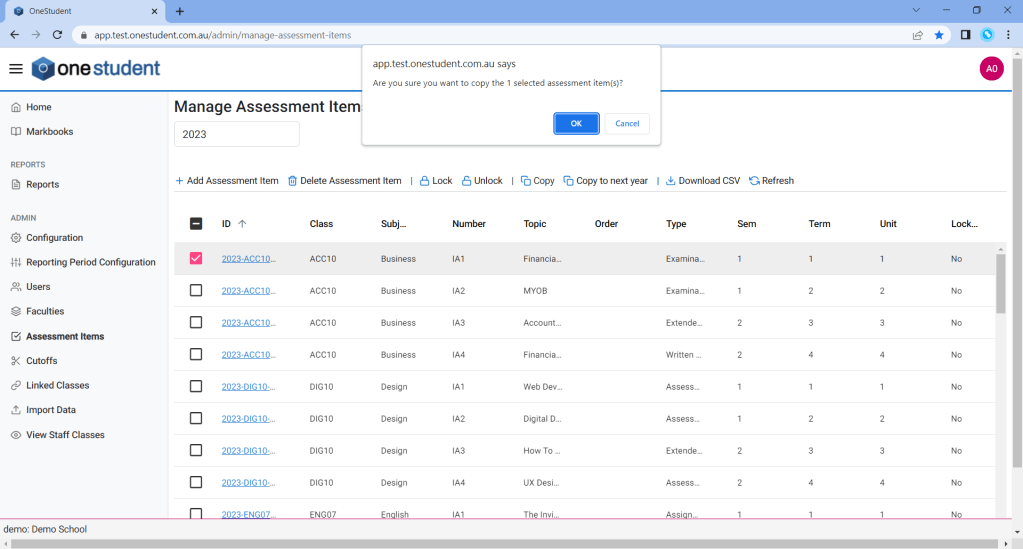
- Select OK.
- Message boxes is displayed, “Success”.
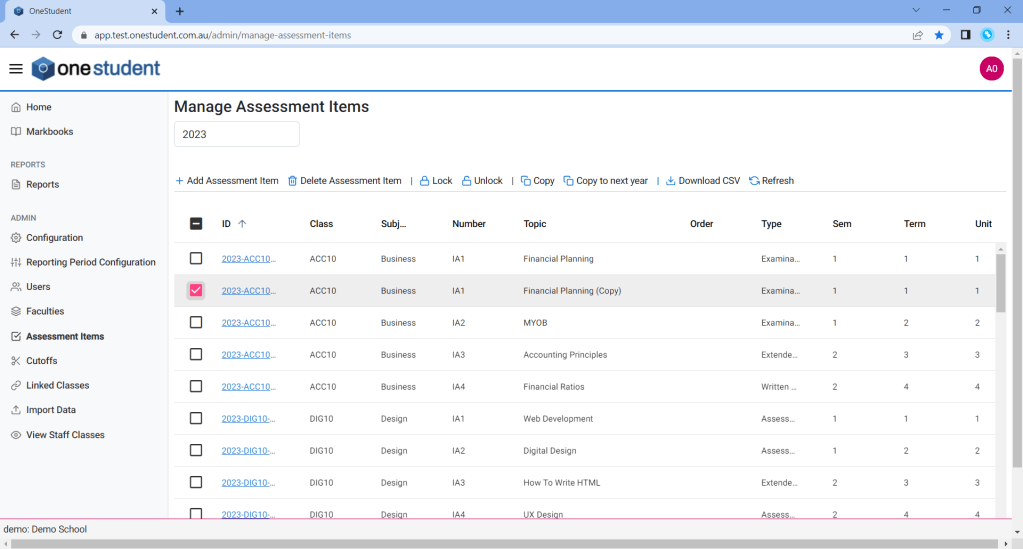
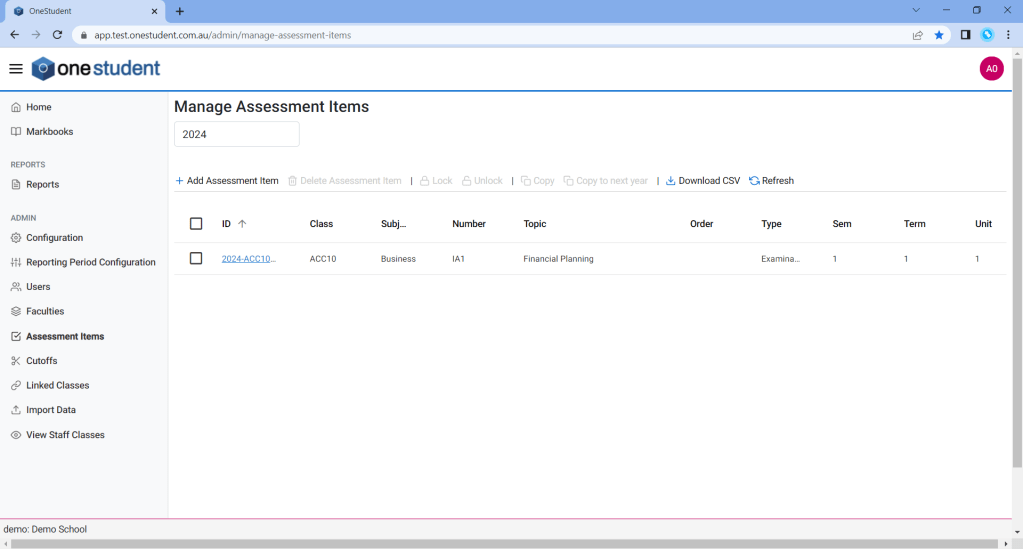
- Copied Assessment Item will be available on the Assessment Items – Manage Assessment Items page.
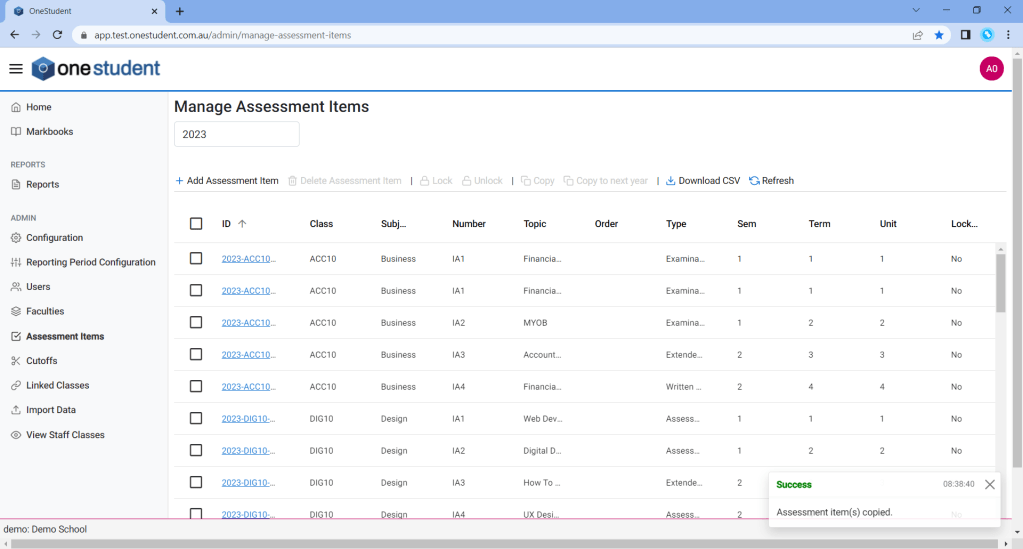
If using the Copy option then the same Topic name and (copy) will be displayed in the year you have selected,
If using the Copy to next year option then the same Topic name will be displayed in next year,
- Select the copy, the Assessment Item Profile will be displayed.
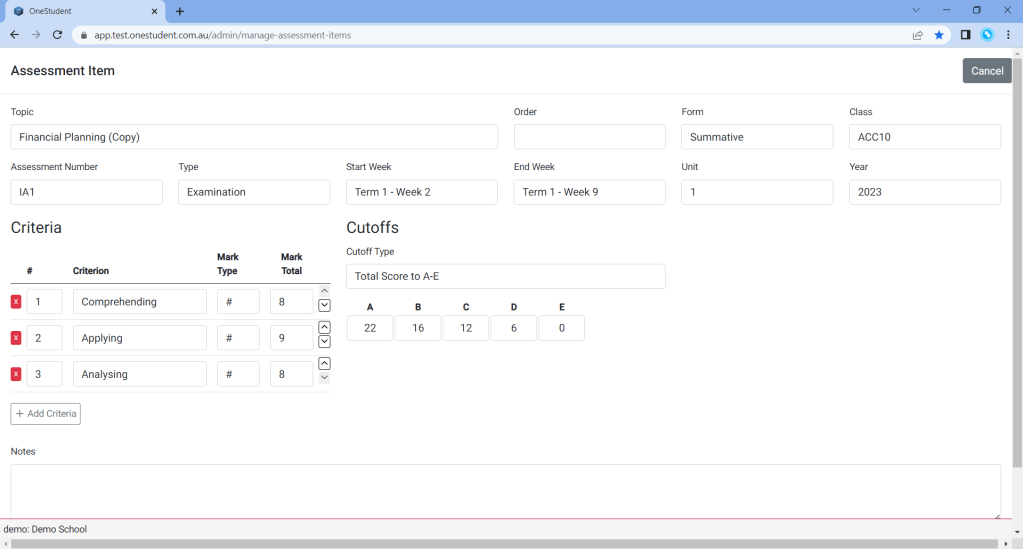
- Update as required, ensuring all Mandatory fields are completed.
- Once completed selected Save, all changes will be updated.
Assessment Items – Modifications
To Modify an Assessment Items:
- From the Assessment Items page.
- Select the Assessment Item to be modified, the Assessment Item Profile will be displayed.
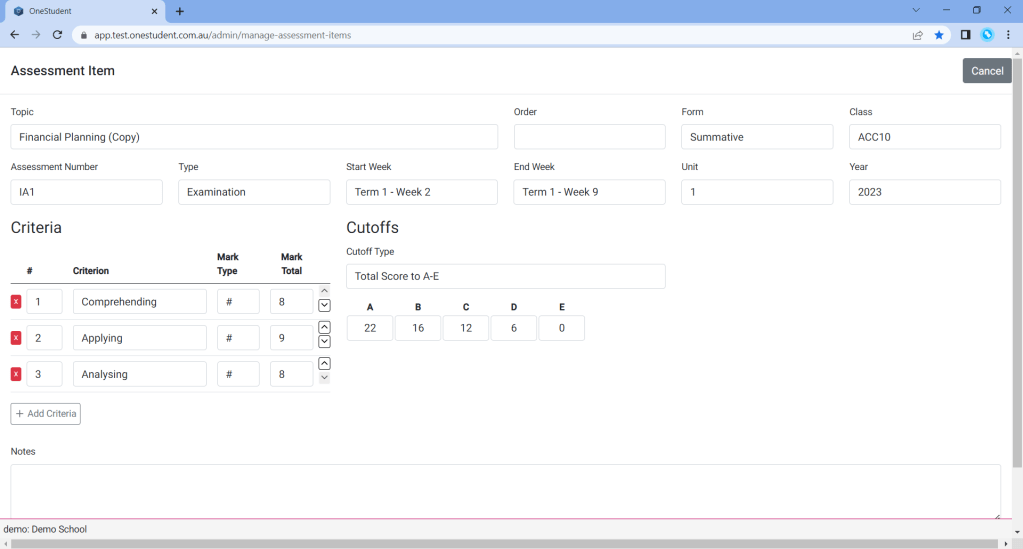
- Update as required, ensuring all Mandatory fields are completed.
- Once completed selected Save, all changes will be updated.
Assessment Items – Download CSV
The Download CSV button can be used to download the current associated data for the selected option within OneStudent. This can be used to manage that data.
To Download CSV for a Assessment Items:
- From the Assessment Items page.
- Select the Download CSV button.
- The relevant Import data type CSV file with be downloaded, with all the current data within OneStudent.
Example of OneStudent – Assessment Items – Download CSV – File displayed in Excel:

Example of OneStudent – Assessment Items – Download CSV – File displayed in Notepad:
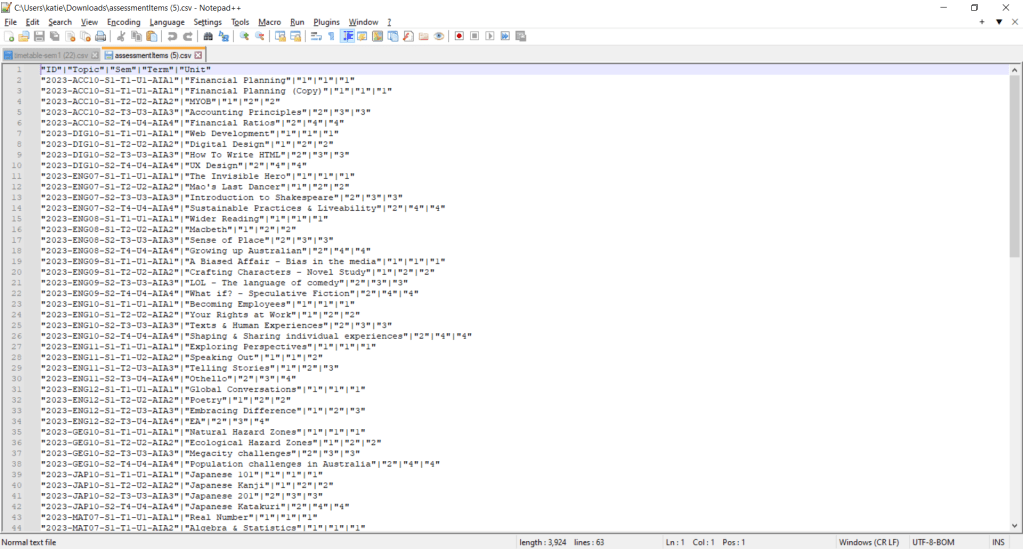
- Manage data as required.
 OneStudent